Citrix Access Gateway – Configure Failover

In this post I’m going to show you how to setup and test failover for Citrix Access Gateway. In this example I’m using the default network interface for Applicane Failover, but it’s recommended to add a dedicated interface.

When you’re setting up Failover the Citrix Access Gateway both appliances new to be on the same version. You also need to make sure that both applicances have matching passwords since those aren’t replicated.

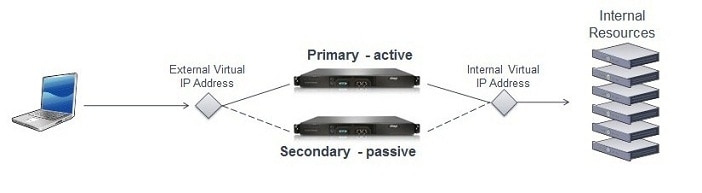
With two appliances joined as a failover pair, users connect to a shared virtual IP address instead of the real eth0 or eth1 IP address. You define one virtual IP address that users will connect to and another virtual IP address which Citrix Access Gateway will use when communicating with back-end resources. The internal and external virtual IP address can both be the same as in our example.
Continue Reading

Free SMS 2-Factor Token for Citrix Web Interface 5.4

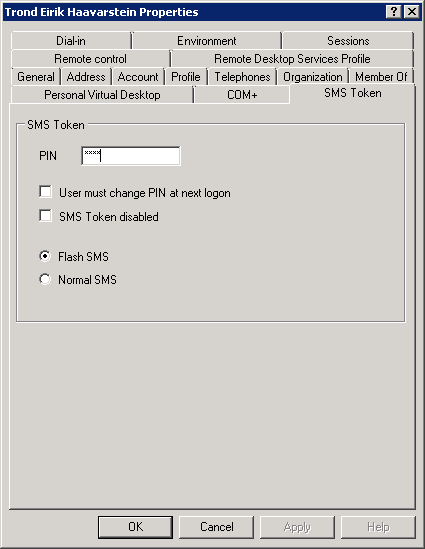
There are many SMS 2-factor solutions for Citrix Web Interface, but only one of them are free. This awesome add on has been created by Claus Isager and there exist many blog posts dating back to 2007. Since then many things have change e.g. the release of Citrix Web Interface 5.4 and the fact that more and more companies are running Windows 2008 R2.

So in this blog post we’ll show you how to install and configure this solution for the x64 platform. First you need to download the source files from Claus Isager web site and make sure you have .NET Framework 3.5 on the domain controller(s) you want to use to manage this SMS 2-factor solution.

Continue Reading

Customize Citrix Access Gateway Logon Point

With the release of Citrix Access Gateway VPX 5.0.4 you’re now able to Customize Citrix Access Gateway to brand your logon point and replace the default gray and boring logon point. Simply download the maintenance release and do the following :

  1. Snapshot – Import – cag_5.0.4.223500.bin
  2. Create a Snapshot of the current configuration
  3. Click Migrate
  4. Restart the Citrix Access Gateway Appliance

Adding Printer Drivers from Print Server using PowerShell

This is a follow up post to last week Replicating Print Drivers in Citrix XenApp 6.5. There’s indeed many smart people out there so today I wanted to share a similar script created by a friend of mine Microsoft PowerShell MVP Jan Egil Ring. This blog post is just a summary of his awesome work so please visit the original blog post and give Jan Egil some creds in the comments on his blog.

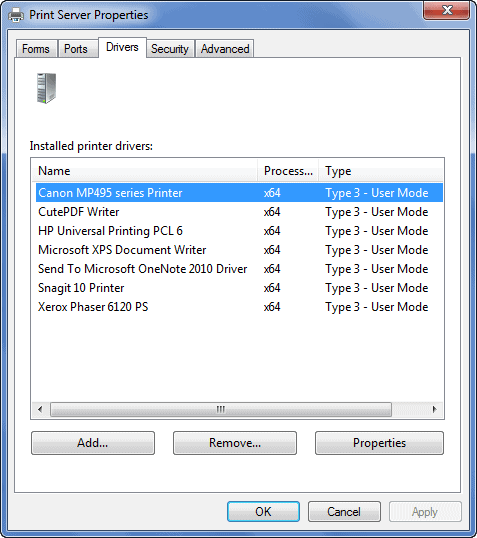
As I described in the last post the easiest way to install printer drivers is to manually or automatically connect to your print server(s) to install the drivers. This is normally not a problem in small environments with only 1 print server and <50 printer objects, but can definitely create some headaches in enterprise environments.

Continue Reading

Replicating Print Drivers in Citrix XenApp 6.5

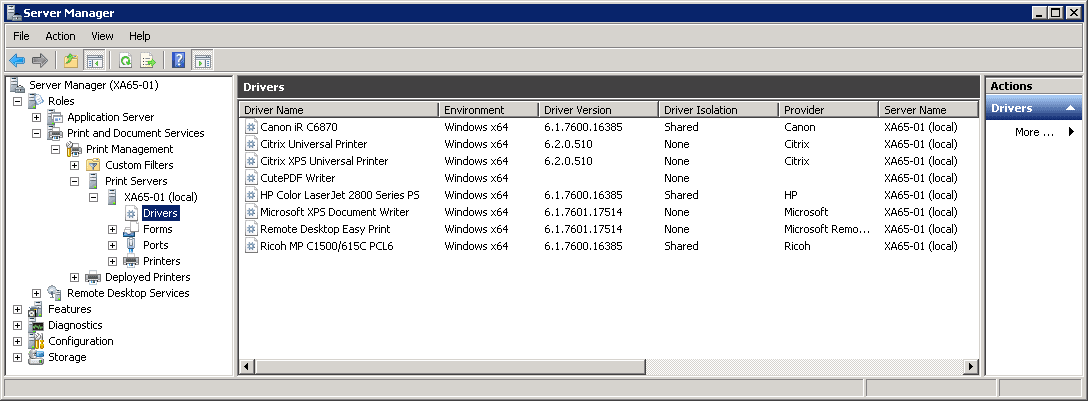
Many people are wondering where the Printer Management node used for replicating print drivers is located in Citrix XenApp 6.x. This is now managed with the Windows Printer Management Role in Windows Server 2008 R2 or through XenApp PowerShell Cmdlets. I’m a big fan of the Citrix Universal Printer Driver but in some cases that’s not good enough and replicating print drivers to all Citrix XenApp servers are required. Luckily there’s light in the end of the tunnel.

Citrix Universal Print Server Tech Preview is available and will most likely be released at Citrix Synergy 2012. The Citrix Universal Print Server Technical Preview extends XenApp 6.5 and XenDesktop 5.5 Universal printing support to network printing. This feature eliminates the need to install numerous network printer drivers on XenApp and XenDesktop hosts, and enables more efficient network utilization. The new Citrix Universal printer driver supports direct network printing on Windows and non-Windows clients.

Continue Reading